Mechanical engineering
Check the part. Understand the machine.
Work through shaft loads, bearing life and bolted joints without building another spreadsheet. Check plant energy use and prepare clear system diagrams.
Find mechanical tools →
Engineering Hub · Ready in your browser.
Engineering Hub builds engineering software you can use in your browser. Engineers and firms use our tools to check machine parts, plan electrical installations, model structures and explore how systems behave. Enter your project values, see the working and review the results.
Built for the work you do
Start with your discipline. Find a practical calculation, a visual model or a clearer way to explain your design.
Mechanical engineering
Work through shaft loads, bearing life and bolted joints without building another spreadsheet. Check plant energy use and prepare clear system diagrams.
Find mechanical tools →Electrical & electronics engineering
Check cable sizes and voltage drop, compare motor starting methods and review earthing. Explore circuit and control responses, then communicate the system with a diagram.
Find electrical tools →Civil & structural engineering
Model trusses and frames, review foundations, follow rainwater through a drainage network and compare road layouts. Make the model and its results easier to inspect.
Find civil tools →Choose your task. We’ll take you to the right tool, explain who it’s for and show how it works.
Bring design files, revisions, review actions and project documents together.
See the project workspace ↗Work through shafts, bearings, springs and bolted joints.
Find mechanical tools ↗Check cables, voltage drop, earthing and motor starting.
Find electrical tools ↗See member forces, support reactions and movement.
See Truss Lab ↗Connect blocks and see how a system responds over time.
See Signal Flow ↗Follow rainfall through pipes, channels and storage.
See Drainage Lab ↗Review footing size, soil checks and reinforcement.
See Foundation Design Lab ↗Explore traffic queues, junctions and signals.
See Traffic Flow Lab ↗Keep project test readings and results together.
See Test Lab ↗Find calculations for machines, circuits, structures and manufacturing.
Find a calculator ↗Sound familiar?
01 / 06
Model the network. Follow the water. Inspect the hydraulic profile.
Explore Drainage Lab →
Enginuity is the project workspace: bring in the reports, drawings and models from your design tools, retain each version and follow review actions through to handover.
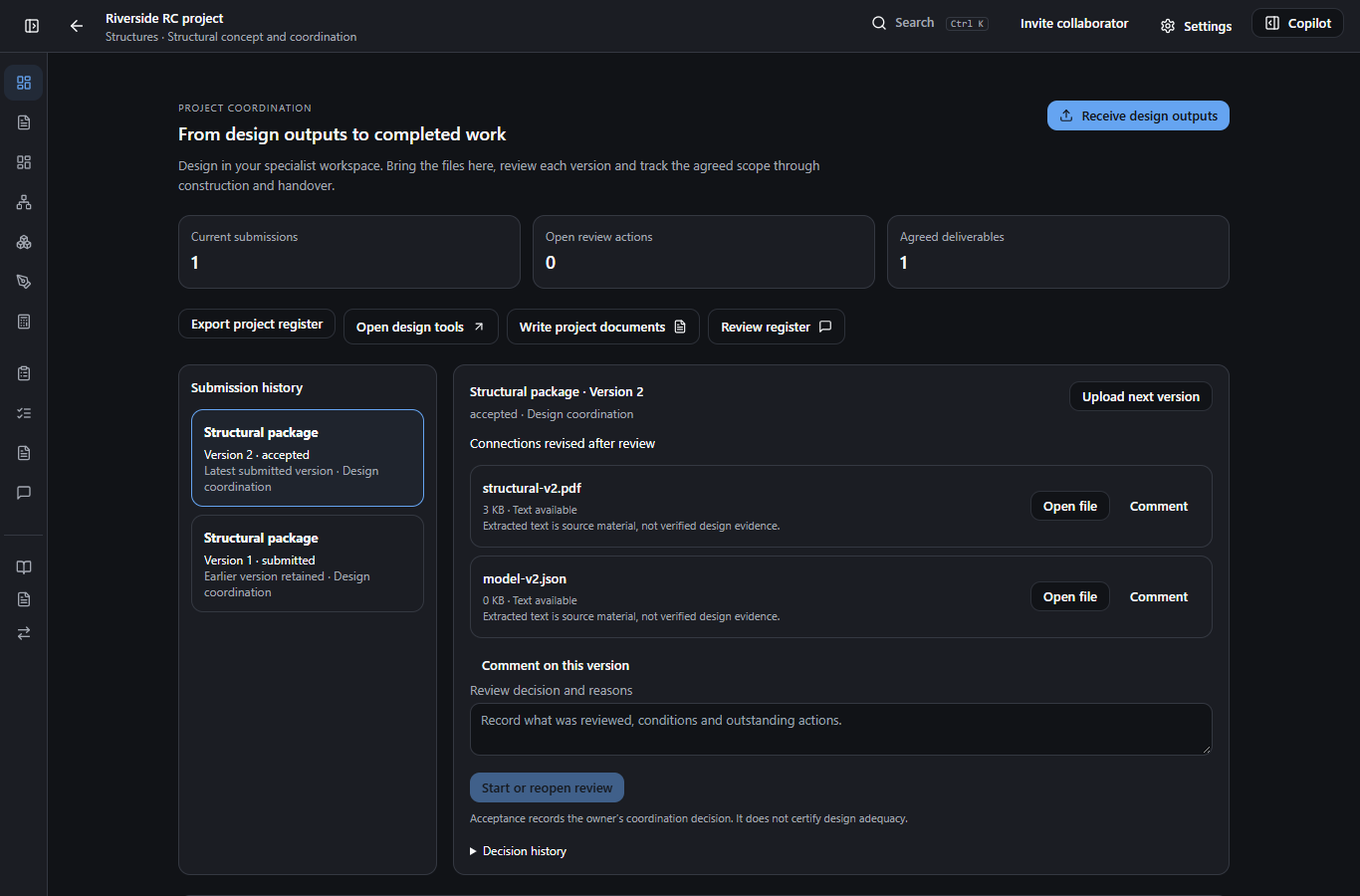
Engineering project workspace
Keep the project, its evidence and its decisions together.
Keep the brief, design submissions, review actions and project documents together. Complete design work in your specialist tools, then bring the files into Enginuity to coordinate review, construction and handover.
See what Enginuity does →Start with something familiar. Watch an example, see who it’s for, then choose your next step.
Traffic Flow Lab · 16 seconds
A current full-workspace recording of Traffic Flow Lab. Watch the built-in city network in the daylight 3D presentation beside its network controls and live operational metrics. The example shows congestion and review warnings; project use requires calibrated inputs and engineering review.
Drainage Lab · 24 seconds
A guided screen tour of the built-in residential network. The app flags a difference between its two calculation modes. Further checks are needed before these example results can be used in a design.
Foundation Design Lab · 24 seconds
A guided screen tour of the application's default footing example: plan, section, reinforcement in 3D and a marginal punching check. The application marks this example Design Inadequate — Revise; the warnings remain visible.
Truss Lab · 24 seconds
A guided screen tour of a built-in bridge example: 2D setup, linear analysis, a 3D view and the results panel. Both 2D and 3D solver controls are available in the app; this tour runs the 2D solver.
Start with your project information. See the calculation, check the result and prepare your handoff.
Enter the dimensions, materials, loads or measured readings your task needs.
Choose the method and calculate using the values you entered.
See the model, diagrams and numbers. Review assumptions and warnings.
Use the reports and file exports available in the tool you chose.
For engineering firms & corporate teams
Tell us what your team needs to calculate, model or review. We’ll help you choose the tools, check the fit and discuss access for your team.
